Licensing
Overview
JustIAM uses a signed license key to unlock features and enforce usage limits. Without a license, the platform operates in free-tier mode.
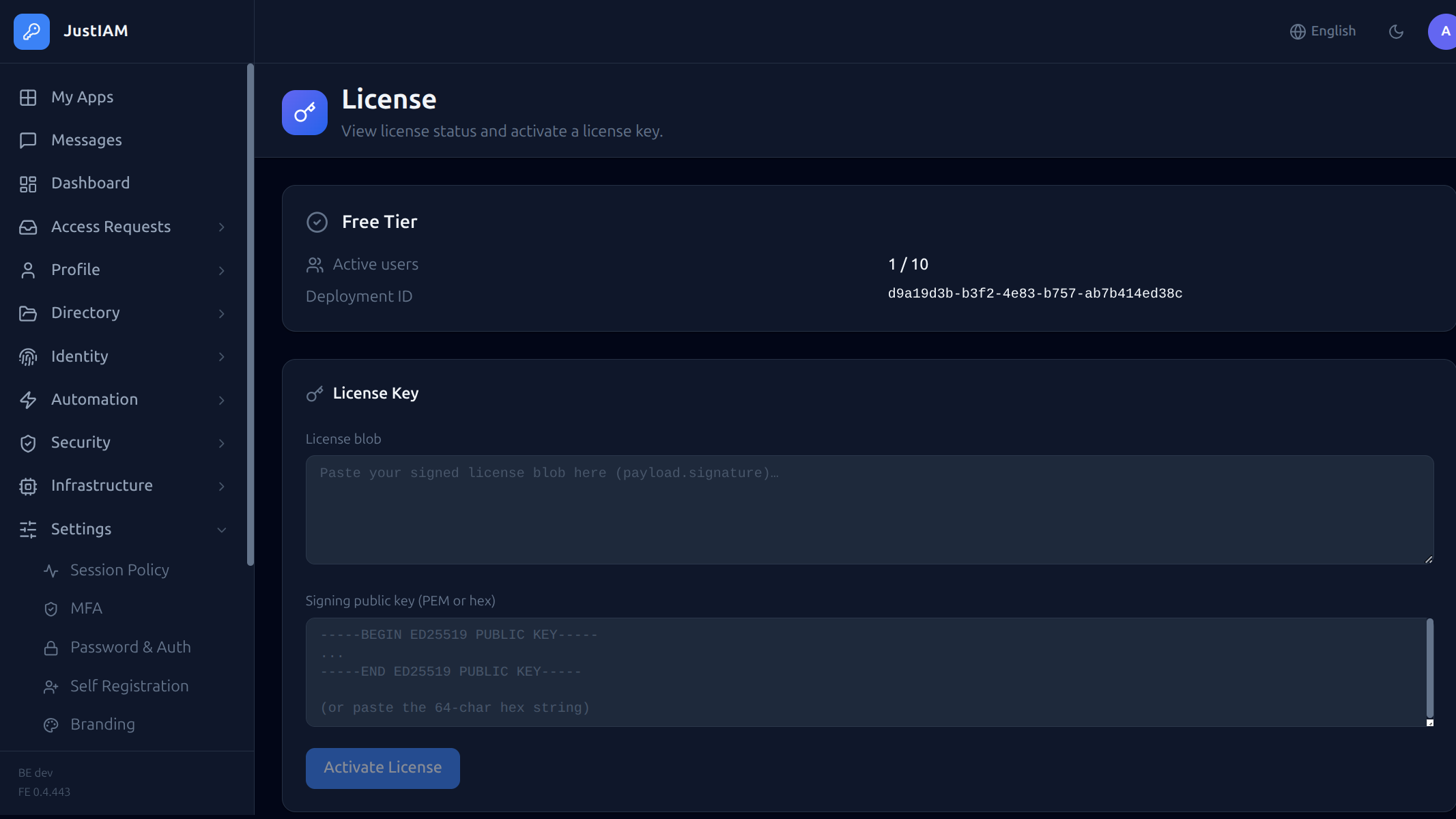
License tiers
| Tier | Condition | Limits |
|---|---|---|
| Free tier | No license key installed | 10 active users per tenant, 2 tenants max |
| Licensed | Valid license key | Up to max_users active users, up to max_tenants tenants |
License lifecycle
A license key transitions through the following statuses:
┌──────────────┐     ┌──────────────┐     ┌──────────────┐     ┌──────────────┐
│   active     │ ──▶ │ expiring_soon│ ──▶ │ grace_period │ ──▶ │   expired    │
│              │     │ (≤ 30 days)  │     │ (30 days)    │     │              │
└──────────────┘     └──────────────┘     └──────────────┘     └──────────────┘
| Status | Meaning |
|---|---|
active |
Valid and not nearing expiry |
expiring_soon |
Valid but within 30 days of expiration |
grace_period |
Past expiration date, but within the 30-day grace window. Everything still works; a banner is displayed |
expired |
Past the grace period. New user creation is blocked. Existing users and logins continue to work |
Tip
Set up alert rules in the control plane to receive notifications when a license enters the expiring_soon state.
License fields
| Field | Type | Description |
|---|---|---|
sub |
string | Licensee name (displayed in the UI) |
instance_id |
string | If set, locks the license to a specific deployment. Leave empty for universal licenses |
max_users |
int | Maximum active users across all tenants. -1 = unlimited |
max_tenants |
int | Maximum tenants. 0 = unlimited |
renewal_url |
string | HTTPS URL for automatic license renewal |
iat |
int64 | Issued-at timestamp (Unix epoch) |
exp |
int64 | Expires-at timestamp (Unix epoch) |
Instance ID binding
Each JustIAM deployment generates a unique Deployment ID (UUID) on first startup. This ID is visible in Settings → License.
When a license has a non-empty instance_id, it will only activate on the deployment whose ID matches. This prevents a license key from being reused across multiple environments.
Universal licenses leave instance_id empty and work on any deployment.
Activation
Control plane mode (multi-tenant)
In multi-tenant deployments, the control plane manages the license centrally:
- Navigate to License in the control plane UI
- Enter the license key and click Activate
- The control plane validates the key and fans it out to all tenants automatically
When a license is set or cleared on the control plane, it is pushed into each tenant's settings table via a background fan-out.
Self-managed mode (single-tenant)
When LICENSE_SELF_MANAGED=true is set on the backend, tenant admins can manage the license directly:
Or use the Settings → License page in the admin UI.
Per-tenant allocation
In multi-tenant mode, the control plane can allocate a maximum number of users per tenant:
The allocation is validated against the tenant's current active user count — you cannot set a cap below the number of users already active.
Renewal
Automatic renewal
If the license has a renewal_url, the control plane will automatically fetch a replacement license as expiry approaches. The URL must return a plain-text license key.
Manual renewal
Trigger a manual refresh:
This calls the renewal_url immediately and replaces the current license if the returned key is valid.
UI renewal
In both the control plane and self-managed modes, a Refresh button is available on the license page when a renewal URL is configured.
Expiration enforcement
| Enforcement | Behavior |
|---|---|
| New user creation | Blocked when license is expired (past grace period) |
| Existing logins | Continue to work normally |
| Admin access | Unaffected |
| UI banner | Displayed during expiring_soon, grace_period, and expired states |
Warning
Plan license renewals well in advance. The 30-day grace period is designed to prevent disruption, not to be relied on as normal operating time.
Clearing a license
Control plane
This clears the license from the control plane and all tenants, reverting them to free-tier mode.
Self-managed
Terraform
License management is not available via the Terraform provider — use the control plane UI or API.
Troubleshooting
| Symptom | Cause | Fix |
|---|---|---|
| "Instance ID mismatch" | License is bound to a different deployment | Request a license for this deployment's ID, visible in Settings → License |
| "License expired" | Past grace period | Renew or replace the license key |
| "Max users exceeded" | Active user count exceeds max_users |
Deactivate unused accounts or upgrade the license |
License shows free_tier despite having a key |
Key may be invalid, expired, or bound to another instance | Re-activate with a valid key |